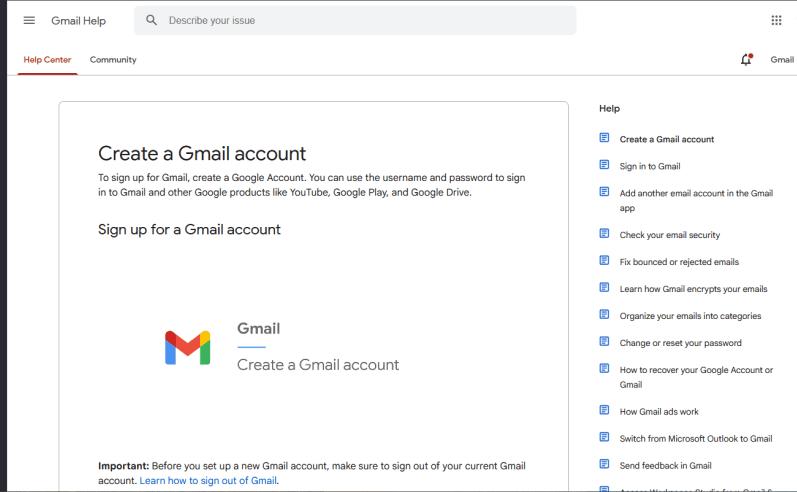
Opening a Google Account
If you use an Android phone, you already have a Google account through Google Play.
If you want to create a second account, or if you’re an iPhone user, go to www.google.com and select “Create account.”
If you’ve previously been signed in with Google, you may be redirected to the login page. In that case, choose “Use another account” and then select “Create account”.
When setting up a new account, you can either link an existing email address or create a new Gmail address (_____@gmail.com).
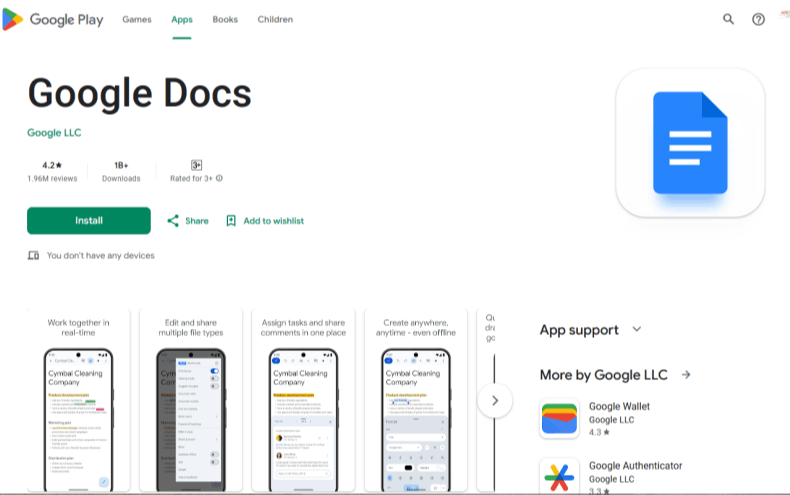
Download the Google Docs App
We highly recommend downloading the app on your phone, PC, or iOS device.
Once you sign in to the Google Docs app, you will remain signed in automatically.
Note: If your Android phone is connected to a different Google Play account, it does not affect your access.
If you are using our webpage link, you must be signed in with your Google account in the web browser you’re using. Otherwise, you won’t be able to view the folders we share with you.
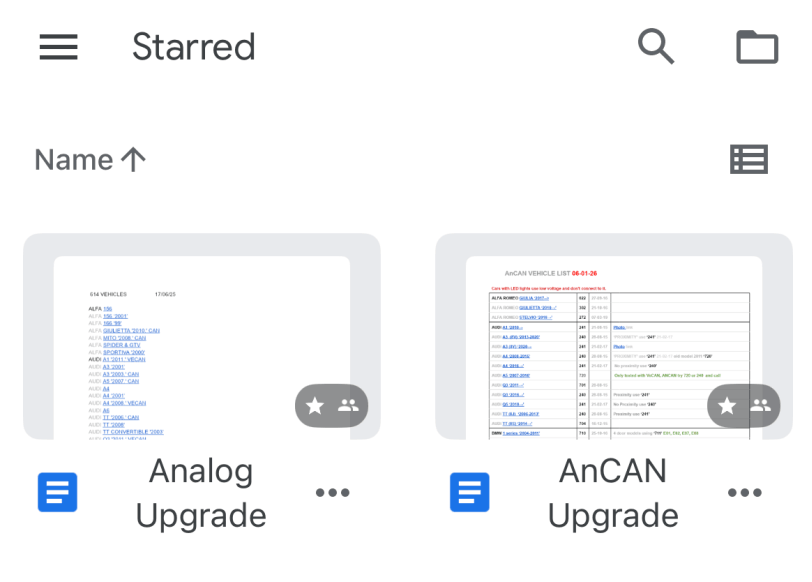
First time user of Google DOCS
When you open the app, you will see the five folders we’ve shared with you.
On the top right, just below your account icon, tap the view icon. This switches how your folders are displayed — either as a list with names or with preview thumbnails.
On the top left, tap the menu icon to open additional options:
Recent
If this is selected, the main page will show all documents you’ve recently opened. Over time, this can become cluttered, and the Antitheft folders may get pushed down the list.
Starred
If this is selected, you will only see items you’ve marked as starred. We recommend starring our folders so you can access them quickly.
To star a folder, tap the three dots next to the folder name, then select “Add to Starred.”
